Showing posts with label utility. Show all posts

Wednesday, March 3, 2010

How to Watch Internet TV in Ubuntu / Debian Linux with Miro


A great Utility for Ubuntu / Debian Users. Miro is a free, open source, video player and podcast client It can play almost any video file and offers over 6,000 free internet TV shows and video podcasts. It has a simple user friendly interface. It supports Fullscreen HD Video. The built-in Miro Guide connects you to thousands of free High Definition video shows. Miro downloads video fast and stores it on your local computer. This way You can Record Youtube and Google video. It can Also use for downloading Torrent files.

Best of all, Miro is 100% free and open source, developed by a non-profit organization and volunteers around the world.

For installing Miro
$ sudo apt-get install miro

or get the latest from here

Thursday, February 25, 2010

How to Control the CPU Usage of a Process in Ubuntu / Debian Linux with cpulimit

 
CPULIMIT is a very good utility, this can be utilized for limiting the cpu usage of a process.  Limits are expressed in percentage, not in cpu time. This  does not act on the nice value or other scheduling priority , but on the real cpu usage. System administrators can effectively use this for avoiding there headace. The % limit from 0-100 for single processor 0-200 for dual processor.

How to install  cpulimit in Ubuntu / Debian

Open a Terminal and Type the following command to install cpulimit:

$ sudo apt-get install cpulimit

Usage

To limit CPU usage of the process called firefox to 40%, enter:

# cpulimit -e firefox -l 40

To limit CPU usage of the process to 40% by using its PID, enter:

# cpulimit -p 1313 -l 40

To find out PID of the process use any of the following:

# ps -u shibu  (list all process for the use shibu)
# ps aux | grep firefox

You can also use absolute path name of the executable, enter:

# cpulimit -P /opt/firefox/firebox -l 40

Where,

    * -p : Process PID.
    * -e : Process name.
    * -l : percentage of CPU allowed from 0 to 100 for singe processor.
    * -P: absolute path name of the executable program file.

Wednesday, February 10, 2010

How to install Songbird Music Player in Ubuntu 9.10 Karmic Koala


Songbird is a opensource Media Player and a web browser,  from the developers of wimamp and Yahoo Music Engine. Songbird is a cross platform utility can be used in Windows, Linux, Solaris  and  Mac. Like Winamp, it supports extensions and skins feathers. It supports a variety of file formats and is an excellent option for organizing your music files in your system. It is derived from mozilla supports Searching for extensions and plugins.

Howto Install Songbird for Ubuntu
Download Songbird from here
You will get the tar.gz file Current Version
Songbird_1.4.3-1438_linux-i686.tar.gz
Now move the file to /opt folder
$ sudo mv Songbird_1.4.3-1438_linux-i686.tar.gz /opt
$cd /opt
Now extract the file using
$ tar xzvf Songbird_1.4.3-1438_linux-i686.tar.gz
It automatically  create a Songbird folder and extract the files in to it.
Change file permissions
$sudo chmod -R 755 Songbird or (chown -R shibu:shibu Songbird)
$cd Songbird
$./Songbird 
        or
$ /opt/Songbird/Songbird

Now Your Songbird will Run
You can add /opt/Songbird/Songbird to your Menu.

Monday, January 25, 2010

How to make Your Ubuntu Linux Enegy Efficient using PowerTop

Since version 2.6.21, the Linux kernel has introduced a   feature called tickless. the kernel no longer has a fixed 1000Hz timer tick. This will give a dramatic  power savings because the CPU stays in low power mode for longer periods of time during system idle.
A Nice handy tool, PowerTop has been created for reducing the Power Usage of Linux.  This application will help to find  the software components that are preventing optimal usage of your hardware and give proper  suggestions for both hardware and software configurations to reduce power consumption of your system. So Now Your Ubuntu is energy Efficient.It is very useful for Laptop Users.

How To Install PowerTop in Ubuntu


Open a terminal and type the following


$ sudo apt-get install powertop


Or You can use Synaptic Package manager and select package powertop.

Sunday, January 17, 2010

Graphical Monitor for the Power Consumption of a Laptop in Ubuntu 9.10 Karmic Koala

Press Alt+F2, then open a run window, then type gnome-power-statistics, Now you can see a graph which shows the usage of power over the time since it booted up (it depends on ur hardware support).

Friday, January 15, 2010

How to Access / Install Device Manager in Ubuntu 9.10 Karmic koala

         
         There is not an  application like Windows Device Manager Ubuntu. Gnome-Device-Manager is the Ubuntu equivalent for the Windows Device Manager application. it's not installed by default. Gnome Device Manager is a front-end, or GUI, to the HAL daemon service. HAL continuously polls the system message flow or "desktop bus," which is also known as "D-Bus.", D-Bus listen for messages about hardware events from the Linux kernel. Example , that a pendrive has been inserted.

How to Install Device Manager in Ubuntu


Open a Terminal andt type

$sudo apt-get install gnome-device-manager

or use synaptic package manager


Using Device Manager in Ubuntu

Gnome Device Manager is started by selecting
Applications → System Tools → Device Manager.

Sunday, November 29, 2009

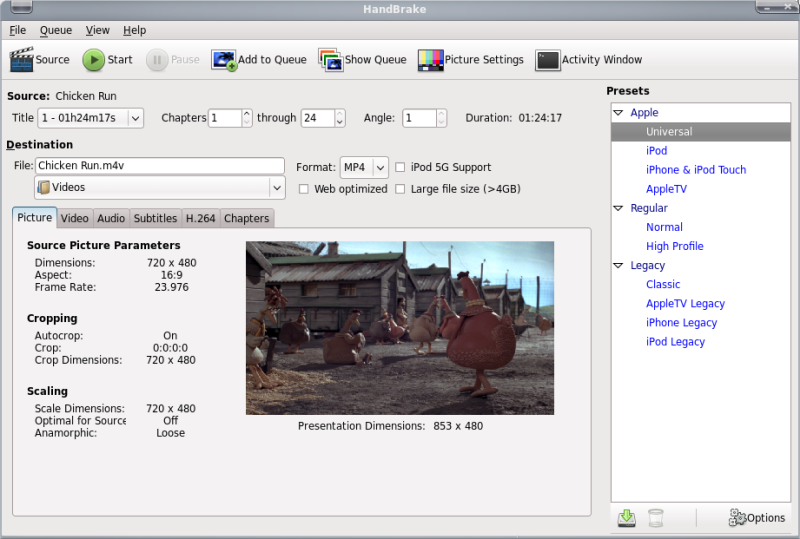
Handbrake : Rip DVD to MP4, MKV, AVI, OGM in Ubuntu 9.04 Karmic Koala

HandBrake is a multithreaded video transcoder, This  will allow us to rip DVD to MP4, MKV, AVI or OGM. It is open source and is under the GPL. To use this program only need the DVD VIDEO_TS folder with the files or a DVD image to pass to the other formats are MP4 and MKV, MPEG-4, H.264, AAC audio or Theora, MP3, Vorbis or AC-3 and DTS.


How to Install in Ubuntu/debian

Download Deb file for ubuntu/Debian Here 32Bit    64Bit
Now double click on deb file and install with gdebi or
Open a terminal and type
$sudo dpkg -i HandBrake-0.9.4-Ubuntu_GUI_i686.deb

Tuesday, November 24, 2009

How to manage your Mobile internet connection in Ubuntu with Launch2net

Launch2net for Ubuntu Linux is a professional mobile Internet Connection Manager for Ubuntu users. launch2net will recognize your type of modem or ExpressCard as well as the SIM card and does not need intricate driver installations or configurations.

A user friendly graphical frontend gives most important information at a glance, like network information, signal strength, online time and data throughput.

It is Simle to use, no long searches for modem drivers or connection settings. launch2net gets you online simple and fast with a few clicks.

L2N have a simple SMS text message manger. You can use launch2net to send, receive and manage your SMS text messages with support of multipart and multigroup messages.

Try to connect your Mobile connections RELIANCE, TATA INDICOM, BSNL with this and write your valuable comments


How to insta;; Launch2net in ubuntu

Download the deb file form here

Now double click on the downloaded file and proceed with gdebi installtion

or Open a terminal and type

$ sudo dpkg -i launch2net2_1.6.0-0_i386.deb

Sunday, November 22, 2009

How to Manage Bluetooth Device in Ubuntu 9.10 Karmic Koala with Blueman

Now a days most of devices comes with bluetooth facilty. If you have a mobile phone and a Laptop, You must Blueman, It will help you a lot.

Blueman is a GTK+ Bluetooth Manager
Blueman is designed to be simple and intuitive for everyday bluetooth tasks such as:

* Connecting to 3G/EDGE/GPRS via DUN profile.
* Connecting to/Creating bluetooth networks
* Connecting to input devices
* Connecting to audio devices
* Sending/Receiving/Browsing files via OBEX
* Pairing

How to Install Blueman in Ubuntu

Go to System—>Administration—>Software—>Sources.Now click on Third-Party Software tab, and add the following

deb http://ppa.launchpad.net/blueman/ppa/ubuntu jaunty main

Now reload the repositories
or
open a terminal and type
$ sudo apt-get update
$ sudo apt-get install blueman

Now open System --> Preference --> Bluetooth Manager

Wednesday, October 21, 2009

5 useful pdf manipulating tools for ubuntu / debian Linux

pdfedit
PDFedit is free and open source tool for manipulating PDF documents. You can use it to read, change and extract information from a PDF file.PDF Editor is run in english language by default, but by setting environment variable LANG before launching the program, you can tell PDF Editor to look for specific language file.

Howto install pdfedit in ubuntu / debian
open a terminal
$sudo apt-get install pdfedit ( or open synaptic package manager and search for pdfedit)

poppler-utils
poppler-utils is a package contains pdftops (PDF to PostScript converter), pdfinfo (PDF document information extractor), pdfimages (PDF image extractor), pdftohtml (PDF to HTML converter), pdftotext (PDF to text converter), and pdffonts (PDF font analyzer). After installation all the utilities can be used in command line.

Howto install poppler-utils in ubuntu / debian
open a terminal
$sudo apt-get install poppler-utils ( or open synaptic package manager and search for poppler-utils)

pdftk
Pdftk is pdf tool kit for doing everyday things with PDF documents. pdftk can be used for Merge PDF Documents, Split PDF Pages into a New Document, Encrypt Output as Desired
Fill PDF Forms with FDF Data or XFDF Data and/or Flatten Forms, Apply a Background
Attach Files to PDF Pages or the PDF Document, Unpack PDF Attachments, Burst a PDF Document into Single Pages, Repair Corrupted PDF (Where Possible).

Interface used is Command Line

Howto install pdftk in ubuntu / debian
open a terminal
$sudo apt-get install pdftk ( or open synaptic package manager and search for pdftk)

Eg:
Merge Two or More PDFs into a New Document
$ pdftk 1.pdf 2.pdf 3.pdf cat output 123.pdf

More Help Here


QPDF
QPDF is a command-line program that does structural, content-preserving transformations on PDF files. It could have been called something like pdf-to-pdf. QPDF is capable of creating web-optimized) files and encrypted files. QPDF also supports a special mode designed to allow you to edit the content of PDF files in a text editor.
Interface used is Command Line

Howto install qpdf in ubuntu / debian
open a terminal
$sudo apt-get install qpdf ( or open synaptic package manager and search for qpdf)

see more here

pdfsam
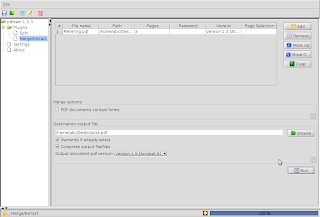
pdfsam is an open source tool designed to handle pdf files. Pdfsam basic is a simple tool designed to split and merge pdf files. It's written in Java and it provides a Graphical interface (GUI) and a shell interface (Console). It's platform independent and it runs on every platform where a Java Virtual Machine is available. It’s released in 2 versions.

split your pdf documents (into chapters, single pages, etc.). merge many pdf documents or subsections of them. extract sections of your document into a single pdf document. save and load your environment to automatize your recurrent jobs.

Howto install pdfsam in ubuntu / debian
open a terminal
$sudo apt-get install pdfsam ( or open synaptic package manager and search for pdfsam)

Saturday, October 3, 2009

Multiget: Graphical Download Manager for Ubuntu / Debian Linux


MultiGet is an easy-to-use GUI download manager for ubuntu / debian linux. It is Look and work like famous windows download manager flashget.

It supports resuming downloads, It supports HTTP/FTP protocols . It supports multi-task with multi-thread on multi-server. You can reconfigure the thread number without stopping the current task.

MultiGet runs natively on Linux, and it supports multiple operating system too. It was tested on many system such as : Windows XP, ubuntu ,kubuntu, xubuntu, Fedora, opensuse, mandriva, MEPIS , PCLinuxOS, CentOS, Puppy, FreeBSD, MacOS etc.

MultiGet is available from Ubuntu universe respository

Howto Install in Ubuntu
$ sudo apt-get install multiget

or you can use Synaptic Package Manager

Friday, October 2, 2009

Filelight: Graphical Disk Usage Analysis for Ubuntu / Debian Linux


Filelight is a little program that analyses your hard drive and shows the Disk Usage in Graphically, It Shows how much space each folder is taking up. Some large temporary files and used iso files will eat your harddisk space. You can easily find which folder is the culprit.
it's a very good graphical program that helps you look at and understand how much space different files and folders are taking up on your hard disk.

$ sudo apt-get install filelight or you can use synaptic package manager

Wednesday, July 29, 2009

Smile : Video Slide Show Creator For Ubuntu / Debian Linux

Smile is a simple tool for creating Video Slide show in Linux.

First you have to install smile-data using gdebi package manager
Download Smile-data From here
(9.6 MB)

After that Install Smile
Download Smile from here
(1.1 MB)